comark-annotate
Annotate
Mark up screenshots in Markdown with hand-drawn marks, numbered notes, arrows, and before/after comparisons.
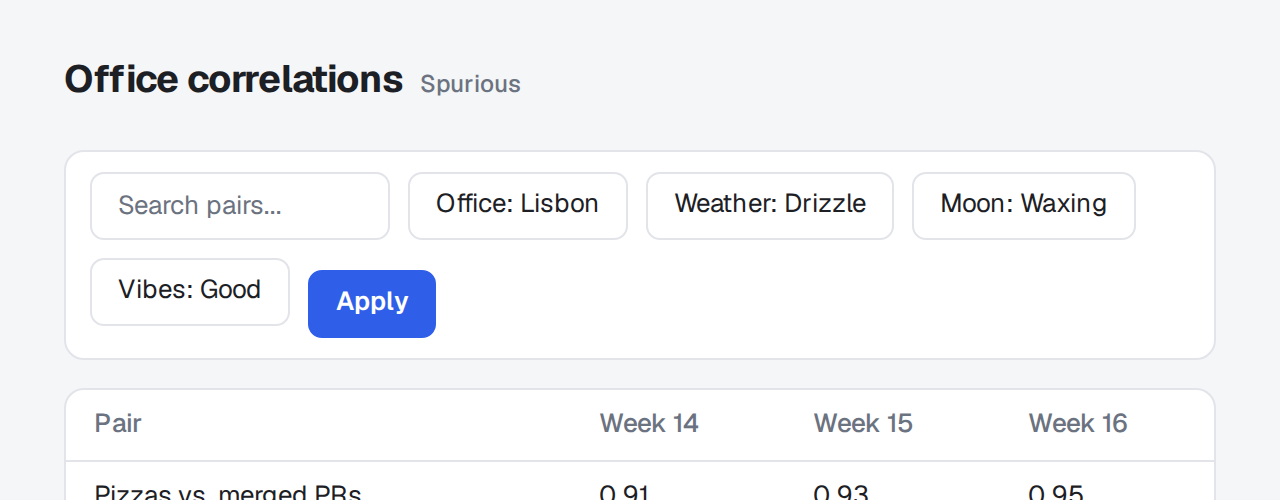 12
12- 1Moon phase and vibes don't fit, so the toolbar wraps and pushes the table down.
- 2Apply sits 6px lower than the chips.
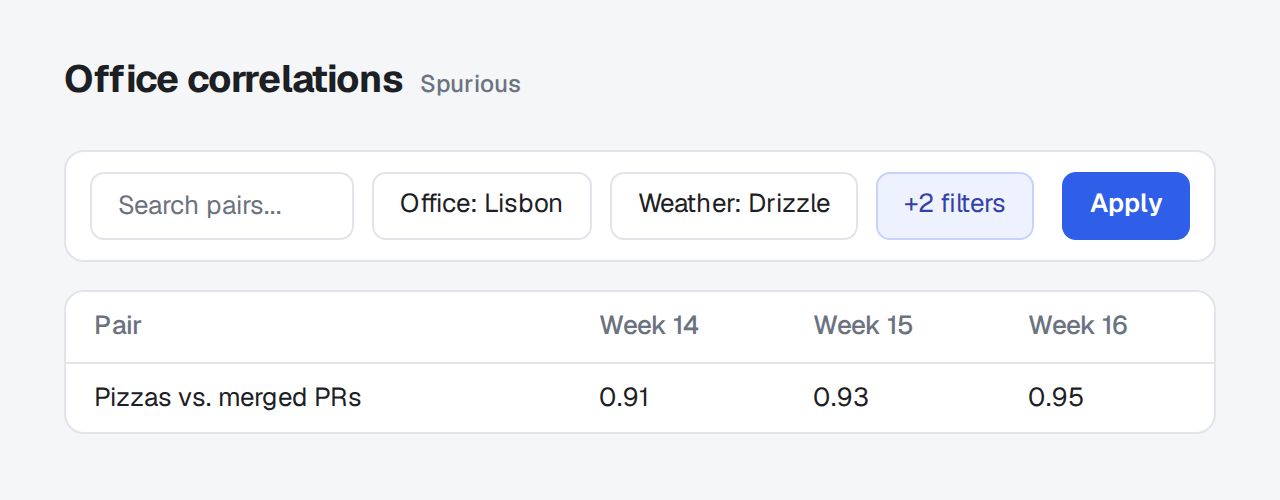 34
34- 3Moon phase and vibes collapse into +2 filters.
- 4Apply lines up with the chips.
::compare
:::screenshot{src="/before.png" alt="Filter toolbar wrapping onto a second row" viewport="640x250"}
::::annotation{x=4.5 y=28.7 w=90.9 h=44.4 color="red"}
Moon phase and vibes don't fit, so the toolbar wraps and pushes the table down.
::::

::::annotation{x=22.4 y=50.4 w=13.3 h=20.6 mark="circle" color="red"}
**Apply** sits 6px lower than the chips.
::::
:::

:::screenshot{src="/after.png" alt="Filter toolbar on one row" viewport="640x250"}
::::annotation{x=68 y=33.1 w=13.3 h=16 mark="highlight" color="blue"}
Moon phase and vibes collapse into **+2 filters**.
::::

::::annotation{x=82.5 y=33.1 w=10.9 h=16 mark="check" color="green"}
**Apply** lines up with the chips.
::::
:::
::- 1Apply sits 6px lower than the chips.
- 2Apply lines up with the chips.
::compare{mode="slider"}
:::screenshot{src="/before.png" alt="Filter toolbar wrapping onto a second row" viewport="640x250"}
::::annotation{x=22.4 y=50.4 w=13.3 h=20.6 mark="circle" color="red"}
**Apply** sits 6px lower than the chips.
::::
:::

:::screenshot{src="/after.png" alt="Filter toolbar on one row" viewport="640x250"}
::::annotation{x=82.5 y=33.1 w=10.9 h=16 mark="check" color="green"}
**Apply** lines up with the chips.
::::
:::
::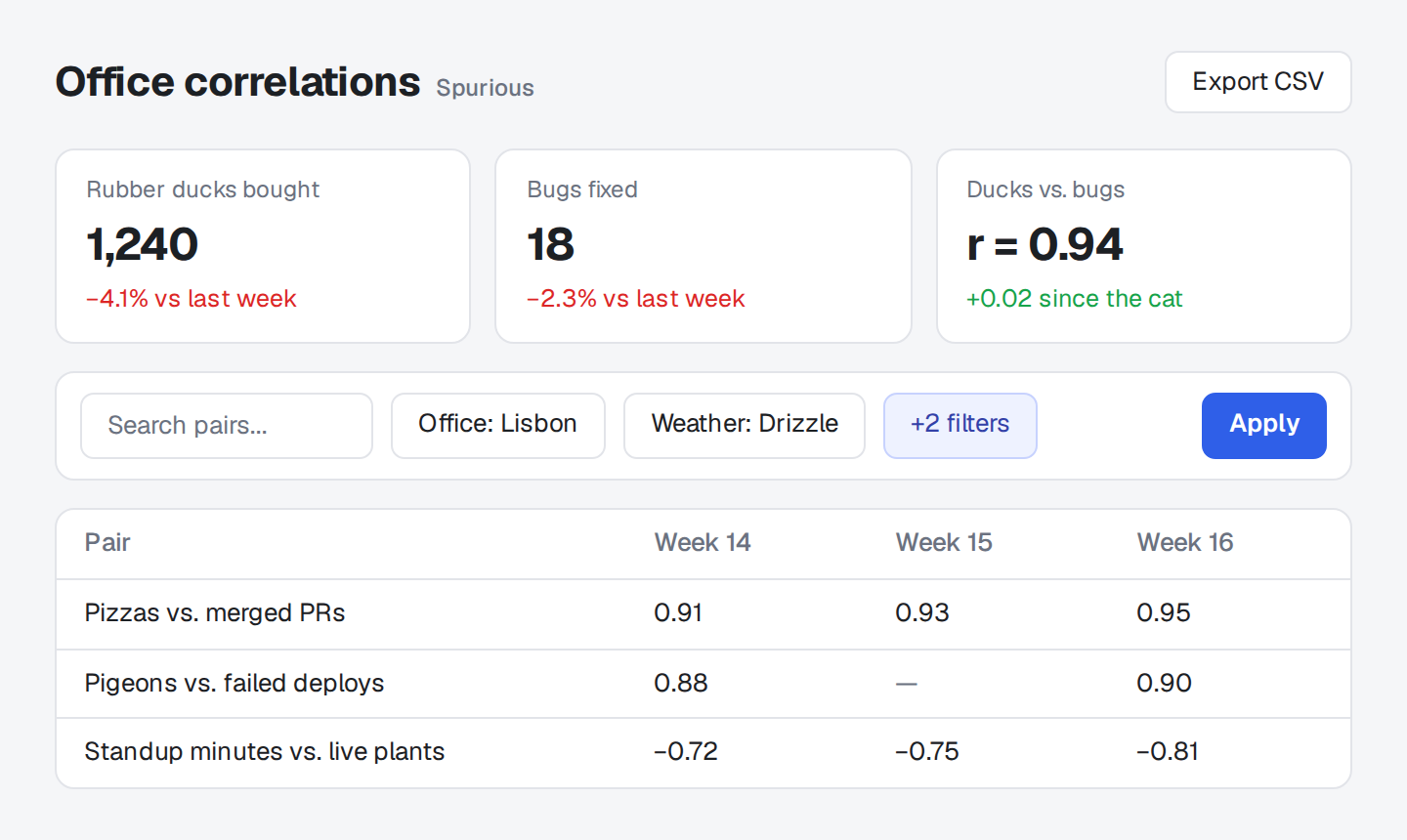 ABC
ABC::screenshot{src="/dashboard.png" alt="Office correlations dashboard"}
:::annotation{x=37 y=33.1 w=16.4 h=5.2 mark="none" side="top"}
Bugs fixed fell with the duck supply.
:::
:::annotation{x=66.1 y=17 w=30.5 h=24.6 mark="none" side="top"}
r now counts the office cat.
:::
:::annotation{x=4 y=77.3 w=92 h=8.2 mark="none" side="left"}
The pigeons ate week 15.
:::
::::screenshot{src="/dashboard.png" alt="Office correlations dashboard"}
:::annotation{x=37 y=33.1 w=16.4 h=5.2 mark="none" side="top" at=58 to="44,33"}
Bugs fixed fell with the duck supply.
:::
:::annotation{x=66.1 y=17 w=30.5 h=24.6 mark="circle" side="right"}
r now counts the office cat.
:::
:::annotation{x=4 y=77.3 w=92 h=8.2 mark="none" side="bottom" at=42 to="64,84"}
The pigeons ate week 15.
:::
::- 1Apply waits until every filter is set, moon phase included.
::screenshot{src="/dashboard.png" alt="Office correlations dashboard"}
:::annotation{x=37 y=33.1 w=16.4 h=5.2 mark="underline" side="top" color="red"}
Bugs fixed fall for the first time this quarter. So do the ducks.
:::

:::annotation{x=66.1 y=17 w=30.5 h=24.6 side="right"}
r now counts the office cat.
:::

:::annotation{x=4 y=77.3 w=75.5 h=8.2 mark="highlight" side="left" color="amber"}
Week 15 is missing for the pigeons.
:::

:::annotation{x=85 y=46 w=9.7 h=9.3 mark="circle"}
**Apply** waits until every filter is set, moon phase included.
:::
::- 1
boxframes an element. - 2
circlerings a small detail. - 3
underlinemarks text. - 4
highlightwashes over an area. - 5
crossstrikes something out. - 6
checkapproves and sits beside its target.
::screenshot{src="/dashboard.png" alt="Office correlations dashboard"}
:::annotation{x=82.4 y=5.3 w=14.2 h=8.8}
`box` frames an element.
:::

:::annotation{x=35.8 y=32.3 w=18.8 h=6.6 mark="circle"}
`circle` rings a small detail.
:::

:::annotation{x=3.5 y=5.9 w=26.8 h=7.7 mark="underline" color="blue"}
`underline` marks text.
:::

:::annotation{x=61.2 y=76.6 w=18 h=9.7 mark="highlight" color="amber"}
`highlight` washes over an area.
:::

:::annotation{x=5.3 y=46 w=21.7 h=9.3 mark="cross" color="red"}
`cross` strikes something out.
:::

:::annotation{x=85 y=46 w=9.7 h=9.3 mark="check" color="green"}
`check` approves and sits beside its target.
:::
::Hover a mark to highlight its note, or a note to highlight its mark. Click a screenshot to zoom it.
To share a screenshot, press its Copy button, or focus it and press Ctrl+C (⌘C on a Mac). You get a PNG with the marks and notes drawn in. The browser's own Copy Image gives you the same PNG once the pointer has been over the screenshot. Copying needs setup in two cases:
- An image from another origin needs CORS headers from its server.
- A page in an iframe needs
allow="clipboard-write"on the frame.
A comparison shows its screenshots side by side, or one at a time on a narrow page, and zooms them as one gallery. A slider stacks the two screenshots, and you drag the divider to reveal one or the other.
Everything reads the same without a script. zoom and carousel come with the package. To page through screenshots spread across a page, or show a flow one step at a time, see the recipes.
Three blocks, each on its own page:
screenshotis an image with marks on it.annotationis one mark and its note, inside a screenshot.compareshows two screenshots side by side, or one over the other with a slider.
An annotation goes inside a screenshot, and a compare holds two screenshots:
::screenshot{src="/after.png" alt="Filter toolbar on one row" title="After" href="https://pr42.preview.example.com/plan"}
:::annotation{x=67.9 y=34.8 w=13 h=14.2}
Extra filters collapse into **+2 filters**.
:::
::screenshot
Section titled "screenshot"| Prop | |
|---|---|
src |
Image URL. Required. |
alt |
What the screenshot shows. Required. |
title |
Heading above the image, and the title of its zoomed view. |
href |
The page you captured, linked by its host next to the title. |
viewport |
Capture size in pixels, like 1440x900. A compare checks that both sides match. |
ink |
The color of every mark and note that doesn't set its own color. Takes the same values as color. |
annotation
Section titled "annotation"A mark on the screenshot and its note. The content is the note. Props can be inline, in a YAML props block, or bound with :x. Notes in the list under the image are numbered. Side notes sit beside, above, or below the image and point with an arrow instead.
A side note sits level with its mark unless at moves it along its margin; its arrow then leaves the note level and sweeps into the mark, the way a hand-drawn leader does. to aims the arrow at one point instead of the middle of the mark's edge, which suits mark="none": the arrow alone points, and nothing covers the screen.
AB::screenshot{src="/dashboard.png" alt="Office correlations dashboard"}
:::annotation{x=37 y=33.1 w=16.4 h=5.2 mark="none" side="top" at=58 to="44,33"}
Bugs fixed fell with the duck supply.
:::
:::annotation{x=4 y=77.3 w=92 h=8.2 mark="none" side="bottom" at=42 to="55,81"}
The pigeons ate week 15.
:::
::- 1Export CSV includes the filters you set.
::screenshot{src="/dashboard.png" alt="Office correlations dashboard"}
:::annotation{x=82.4 y=5.3 w=14.2 h=8.8 color="blue"}
**Export CSV** includes the filters you set.
:::

:::annotation{x=66.1 y=17 w=30.5 h=24.6 side="right" color="green"}
r now counts the office cat.
:::
::| Prop | |
|---|---|
x y w h |
The marked area, as percentages of the image: numbers from 0 to 100, without %. All four are required. |
mark |
box (default), circle, underline, line, highlight, bracket, cross, check, or none to let a side note's arrow do the pointing. A line runs straight through the middle of its box, along its longer side, such as a fold or a limit. A bracket stands on the edge that faces its side note, the left one without a note, to span a run of rows or a group without covering it. none needs a side. Each mark wobbles a little differently, seeded by its box, so no two match and every render draws the same. |
side |
left, right, top, or bottom puts the note beside, above, or below the image with an arrow. |
at |
Where a side note sits along its margin, as a percentage of the image: across it for top and bottom, down it for left and right. Defaults to level with the arrow's point. A note set off to one side starts where its arrow leaves it and reads away from the point. Needs a side. |
to |
The point the arrow lands on, as two percentages of the image, like to="42,18". Defaults to the middle of the mark's edge that faces the note. Needs a side. |
color |
violet (default) points something out and reads on light and dark screenshots alike, red flags a problem, amber a warning, green a fix, blue is a second voice beside the default, gray anything neutral. Each has a dark-mode value. A 3- or 6-digit hex color like #e11d48 works too, and its stamp gets whichever of a white or dark number reads better. |
compare
Section titled "compare"Two screenshots side by side, titled Before and After unless they set their own title. Numbers continue from one side to the other, and the pair stacks on narrow screens. Notes with side="left" or side="right" join the numbered list under their screenshot, since beside it they'd sit against the other one and shrink their own image; notes with side="top" and side="bottom" stay above and below, and both images keep the same room for them so they stay level.
With mode="slider", the two screenshots share one frame: Before shows left of a divider and After right of it. Drag anywhere on the pair, or focus the handle and use the arrow keys, to move it; a click on the screenshots that doesn't drag zooms the pair. Use it when both screenshots show the same spot and the change is small, so the reader sees it at full width. Side notes become numbered notes in the list, since an arrow would cross the divider. Without the script, the two screenshots stack.
1- 1Apply sits lower than the chips.
2- 2Fixed.
::compare{title="Toolbar alignment"}
:::screenshot{src="/before.png" alt="Toolbar wrapping" viewport="640x250"}
::::annotation{x=22.4 y=50.4 w=13.3 h=20.6 mark="circle" color="red"}
**Apply** sits lower than the chips.
::::
:::

:::screenshot{src="/after.png" alt="Toolbar on one row" viewport="640x250"}
::::annotation{x=82.5 y=34.8 w=10.5 h=14.2 mark="check" color="green"}
Fixed.
::::
:::
::| Prop | |
|---|---|
title |
What the comparison shows, read out by screen readers. Defaults to "Comparison". |
mode |
columns (default) puts the screenshots side by side; slider lays them over each other with a divider to drag. |
ink |
The color of every mark and note in both screenshots that doesn't set its own. A screenshot's own ink wins. |
Examples
Section titled "Examples"Side notes
Section titled "Side notes"side="left", side="right", or side="top" moves a note out of the list to beside or above the image, with a hand-drawn arrow to its mark. Add mark="none" to point at something without drawing a box. Side notes have no number, because the arrow already links them to their mark.
- In a compare, only notes above the image keep their arrow.
- On narrow screens, side notes drop under the image and the arrows hide. Each note and its target get a matching letter instead.
Notes on the same side need room. The plugin reports side notes whose marks sit close together vertically, since they would likely overlap. It can't measure the text, so check the rendered page too. If two notes collide, move one to the other side or into the list.
Placing marks
Section titled "Placing marks"Measure the element in the page you captured and divide by the viewport. Don't estimate from the image.
const r = element.getBoundingClientRect();
const box = {
  x: (r.x / innerWidth) * 100,
  y: (r.y / innerHeight) * 100,
  w: (r.width / innerWidth) * 100,
  h: (r.height / innerHeight) * 100,
};For a full-page screenshot, add the scroll offset and divide by the page size instead.
Numbers place themselves. Each sits on a corner of its mark, so it reads as that mark's number and not its neighbor's. It tries top left, top right, bottom left, then bottom right, and takes the first corner clear of other numbers, marks, and arrows. If it would hang past the image's edge, it lines up with the mark's edge instead.
Set viewport on the screenshot so the plugin judges the corners against the image's real shape. If marks crowd so close that two numbers overlap at every corner, the plugin reports both annotations.
Validation
Section titled "Validation"The plugin adds a problem with any block to meta.issues, as Validation describes. Each issue names its block. A screenshot goes by its src, or by its position and alt when another screenshot has the same src. An annotation goes by its position in its screenshot:
screenshot "after.png", annotation 2: the box runs past the image edge. Keep x + w and y + h within 100.The plugin reports an unknown prop with a list of the valid ones, and a :bound prop that points at missing frontmatter. It leaves bindings to data or props to the renderer. Each kind of problem has its own rule in Doctor, with an example and its fix.
The plugin takes no options. In comarkUi(), annotate: false turns it off.
The package comes with a small CLI that knows zoom and carousel too.
checklists every problem in one or more files, and exits with 1 if there are any.renderwrites a standalone page next to each file. Open it and take a screenshot to confirm each mark sits on its target.
npx comark-annotate check duck-audit.md pigeons.md
npx comark-annotate render duck-audit.md -o duck-audit.html
Package
Section titled "Package"comark-ui brings comark-annotate and registers it. To use it alone, install it and pass the HTML renderers as components:
pnpm add comark @comark/html comark-annotateimport { createHtmlRenderer } from "@comark/html";
import annotate, { components } from "comark-annotate/html";
const render = createHtmlRenderer({ plugins: [annotate()], components });
const html = await render(markdown);The renderer inlines its styles and script once per document. Annotate renders only to HTML; Renderers covers using it with other plugins, a strict Content Security Policy, and untrusted notes.
The comark-ui agent skill knows the syntax, how to measure marks from the page, and how to check the result. Agents install it with npx skills add onmax/comark-ui, and Agents covers the rest.
Screenshots and comparisons follow the page's theme through the shared tokens. The mark colors are separate from the theme, because each one means something. The rules sit in a comark CSS layer, so any plain rule of your own wins. ::diff is in comark-diff, which has its own Theme section.
Shared tokens
Section titled "Shared tokens"Annotate reads these shared tokens:
| Token | Used for |
|---|---|
--comark-background |
The Copy button, the slider's line and grip, the ring around stamps |
--comark-foreground |
The Copy button's icon, the slider's grip, the status after a copy |
--comark-border |
The outline around screenshots, the Copy button, the slider's grip |
--comark-accent |
The hovered Copy button |
--comark-ring |
Focus rings |
--comark-radius |
Corners of screenshots and notes |
--comark-font |
Stamp numbers, the status after a copy |
Variables
Section titled "Variables"Set them on .ca, the root of every block:
| Variable | Default | Used for |
|---|---|---|
--ca-color |
var(--ca-violet) |
Marks, arrows, and notes without a color |
--ca-solid |
var(--ca-violet-solid) |
Their stamps, and their strokes in dark mode |
--ca-ink |
var(--ca-violet-ink) |
The number on their stamps |
--ca-red to --ca-gray |
#ee3533, #f5a524, #259f56, #0581e6, #8b5cf6, #71717a, lighter in dark mode |
Marks, arrows, and notes in red, amber, green, blue, violet, and gray |
--ca-red-solid to --ca-gray-solid |
#d01d21, #f59e0b, #037e3f, #0267c7, #7c3aed, #52525b |
Stamps in each named color, and its strokes in dark mode |
--ca-red-ink to --ca-gray-ink |
#fff, and #1c1917 for amber |
The number on a stamp in each named color |
--ca-ring |
--comark-background |
The ring that parts a stamp from the screenshot |
--ca-note-font |
comark-caveat, cursive |
Side notes and titles. inherit uses the page font. |
--ca-note-size |
1.25em |
Side notes |
--ca-label-size |
1.5em |
A screenshot's title |
--ca-gutter |
10rem |
The room beside the image for side="left" and side="right" notes |
--ca-top-gutter |
5rem |
The room above the image for side="top" notes |
--ca-bottom-gutter |
5rem |
The room below the image for side="bottom" notes |
--ca-gap |
1.25rem |
The space between a side note and the image, where its arrow runs |
A screenshot's or compare's ink colors its annotations the same way. An annotation's color sets --ca-color, --ca-solid, and --ca-ink on its own mark and note, so it wins over .ca. Caveat comes inlined with the styles, about 32 KB once per page.
Classes
Section titled "Classes"- Every block sits in a
.ca: a screenshot'sfigure.ca-screenshotinside it, and.ca.ca-comparefor a compare (plus.ca-sliderwithmode="slider"). - A screenshot holds
.ca-headingwith its title in.ca-label, then.ca-stagewith the image in.ca-frame, and afigcaptionwith the notes inol.ca-notes. It has.ca-left,.ca-right, or.ca-topwhen it has side notes there. - A mark is a
.ca-markwith its shape as a class, such as.ca-boxor.ca-circle, and its number in.ca-stamp. A side note is a.ca-calloutwith its arrow in.ca-arrow. A mark, its arrow, and its note share adata-n. - The Copy button is
.ca-copy. A slider's divider is.ca-handle, with its knob in.ca-grip.
.ca {
  --ca-color: #0070f3;
  --ca-solid: #0070f3;
  --ca-ink: #fff;
  --ca-note-font: inherit;
}